How to Reload the CUIX File in HyDraw CAD
If the HyDraw CAD ribbon, toolbars, or commands are missing or not loading properly, reloading the CUIX
(Custom User Interface) file can resolve the issue. This guide explains the steps to reload the HyDraw CAD
CUIX file using AutoCAD's CUI (Customize User Interface) command.
When to Reload the CUIX File
Reloading the CUIX is helpful when:
- HyDraw CAD ribbon is not visible
- Commands are missing or not
responding
- The interface resets after an update
- Ribbon elements appear blank or corrupted
Steps to Reload the CUIX File
- If the command line is not visible, press Ctrl+9 to turn it on.
- Type CUILOAD in the command line and press Enter.
- In the dialog box, select the loaded customization file and click Unload to remove it.
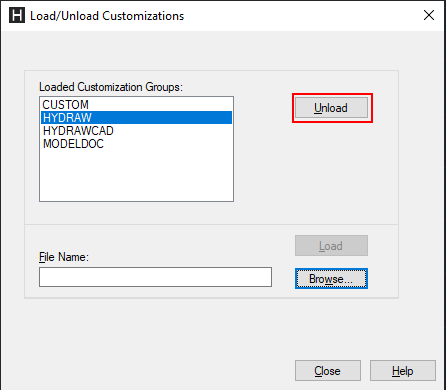
- Close the dialog box and restart HyDraw CAD.
- After restarting, type CUILOAD again in the command line and press Enter.
- In the dialog box, click Browse and navigate to the HyDraw.cuix file located in the following directory: C:\Users\<User Name>\AppData\Roaming\VEST\HyDraw CAD <version>\R<version>\enu\Support
- Select the file, click Open, and then click Load.
- Close the dialog box and verify that the ribbon has been reset to the default layout.
- Reopen HyDraw CAD to ensure the ribbon loads correctly.
Additional Tips
- Ensure the CUIX file is not corrupted. You can replace it with a fresh copy from another working
machine.
- Avoid manually editing the HyDraw CUIX file, as it may break command mappings.
Related Articles
HyDraw CAD Fails to Open – Random "File Missing" Messages
Issue: Users may encounter random "file missing" error messages when attempting to launch HyDraw CAD. The application fails to open properly. Cause: This issue typically occurs for users with standard (non-admin) accounts who do not have sufficient ...
How to Convert an AutoCAD Schematic into a HyDraw CAD Schematic
If you have a schematic created in AutoCAD or any other DWG-based CAD application and want to make it compatible with the HyDraw CAD program, there are two methods to convert it into a HyDraw schematic: Method 1—Replace Symbols Manually: Find similar ...
Add deselect option on Ribbon Menu
Follow steps below to add deselect option within the Ribbon Menu. To do so, type "CUI" on the command line. Once within the CUI interface, you will need to navigate to Partial Customization Files>HYDRAWCAD>Ribbon>Panels>Setup>Row1 within the ...
AutoCAD Specific Commands Used While Working in HyDraw
1. Adding New Attributes and Changing Orientation in Block Editor To add new attributes inside Block Editor, use the ATTDEF (Attribute Definition) command. To change attribute orientation, use the Rotate command (RO) or modify attribute properties ...
How to open a damaged hydraw cad file?
To open a damaged file in HyDraw CAD, 1. Open HyDraw CAD. 2. Run "recover" from the command line. 3. Select the file. 4. A log will appear showing errors found and fixed, and whether any objects have been removed from the file. 5. Select "Close," and ...