Change the Default Font and Text Size for External Port Names and Port Size Callouts
- To change the default font or text style for External Port Names and Port Size callouts, follow the steps below:
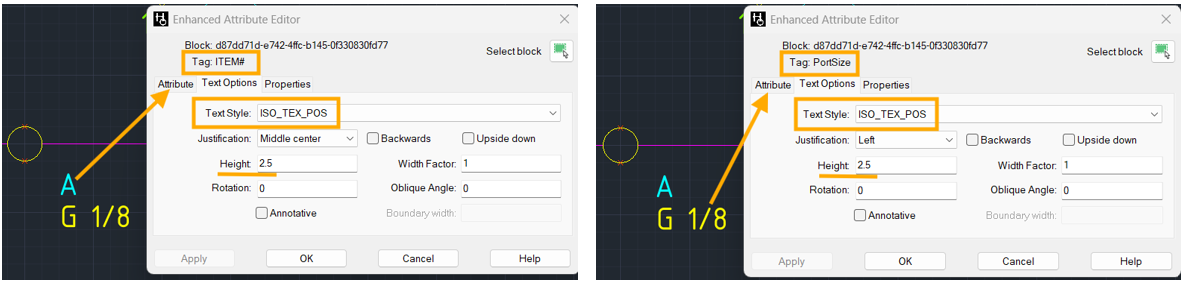
- Both the ITEM# and PortSize attributes use the same Item ID text style, ISO_TEX_POS.
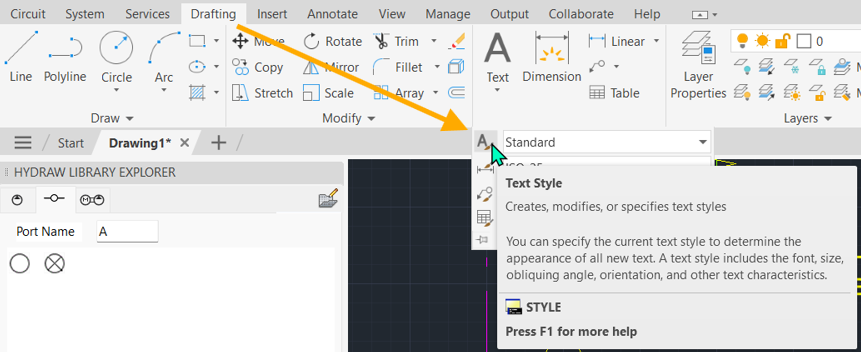
- To modify the text style, select Text Style from the Drafting tab, under the Annotation group, as shown below.
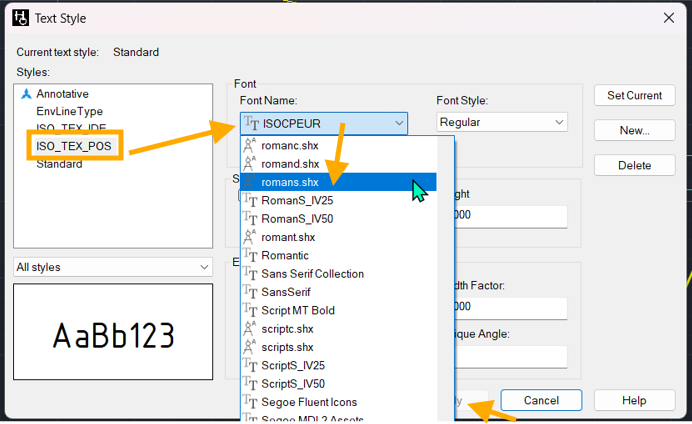
- In the Text Style dialog box, select ISO_TEX_POS. From the Font Name drop-down list, choose the required font (for example, romans), as shown below, and then apply the changes.
- The font for the External Port Names, Port Size callouts, and ITEM# labels are updated accordingly. To make this change the default for all new drawings, save the modified ISO_TEX_POS text style in your drawing template.
Note: The ISO_TEX_POS text style is shared by the External Port Names, Port Size callouts, and ITEM# labels. Therefore, changing the font affects all three objects. They cannot be customized independently.
* To restore the default text style settings, follow the steps provided in the article below:
https://vestusa.zohodesk.com/portal/en/kb/articles/how-to-reset-port-name-fonts-to-default-standard-font-style
- To change the text height for the external port names and port size callouts, use either of the following methods:
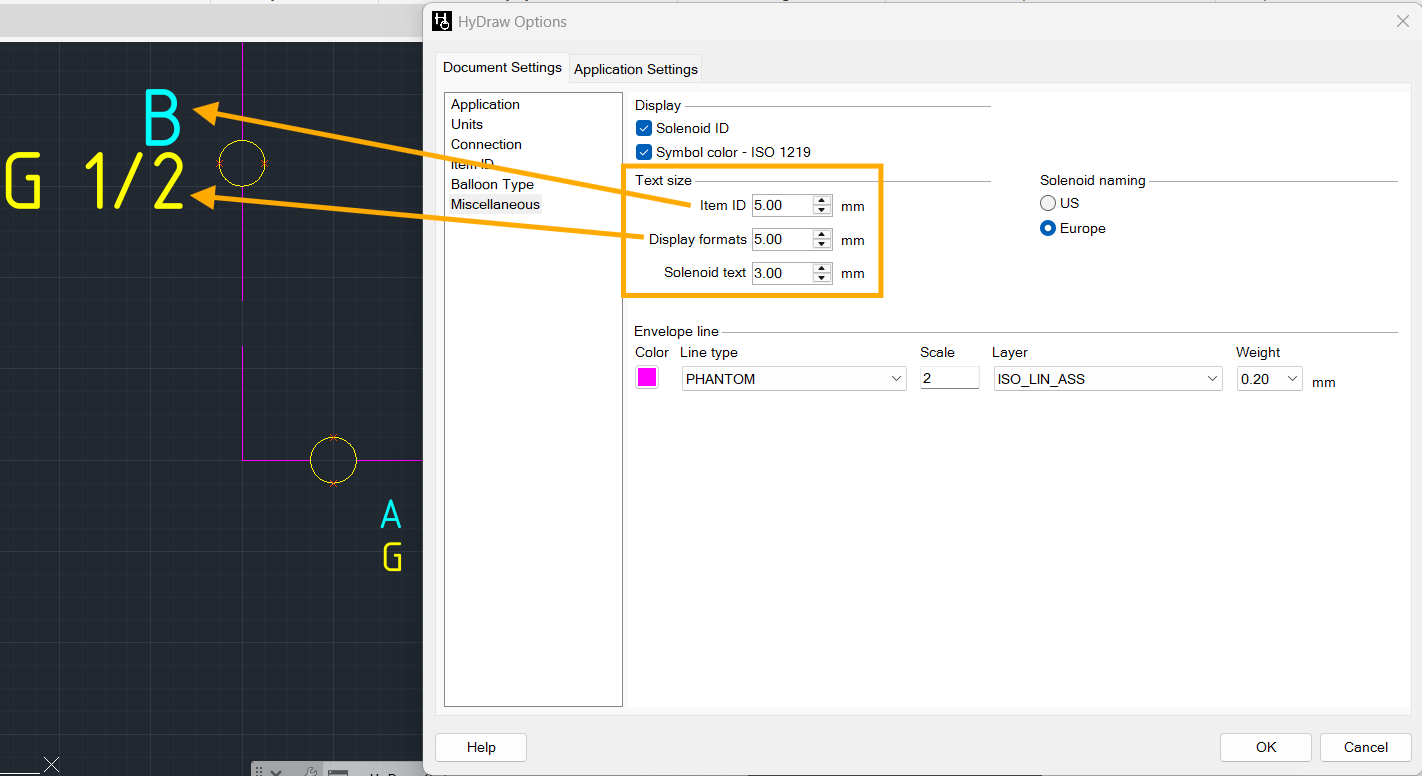
- Navigate to Circuit > HyDraw Options > Document Settings > Miscellaneous and modify the Item ID and Display Format text heights as required. To make these settings the default for all new drawings, save the changes in your drawing template.
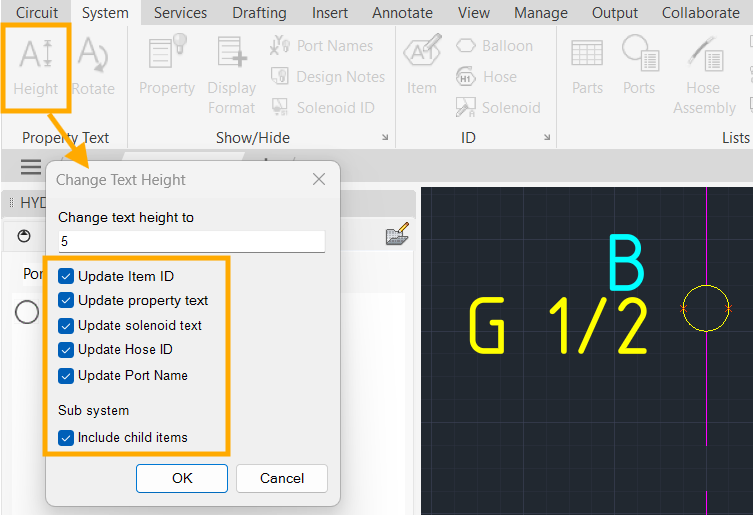
- Navigate to System > Property Text > Height to set the text height on a per-selection basis for individual/selected symbols or ports by using the available checkboxes.